
How to Put Notes on iPhone Home Screen
Introduction
Turning your iPhone’s home screen into an organized space can significantly boost your productivity. By placing notes directly on your home screen, you gain immediate access to important information without navigating through apps. This guide will show you how to use iPhone’s native tools as well as innovative third-party apps to place and customize notes on your home screen. With these tips, managing your tasks and thoughts becomes seamless and intuitive, saving you time and effort in your daily routine.
Understanding iPhone Widgets and Their Benefits
Apple has integrated widgets into the iPhone home screen to enhance user experience by offering quick access to app functions without needing to open each one. These small, customizable tools display crucial information at a glance, boosting your device’s usability. When it comes to the Notes app, widgets provide a straightforward way to access your important reminders. Having widgets saves time, helps maintain organization, and makes your phone more intuitive to use.
In essence, widgets serve as a bridge for individuals seeking quick access to information while avoiding the complexity of navigating through multiple apps. They are especially beneficial for note-takers, busy professionals, or students who need immediate access to their notes. Let’s proceed to set up these widgets for the Notes app.
Using the Native Notes App to Create Widgets
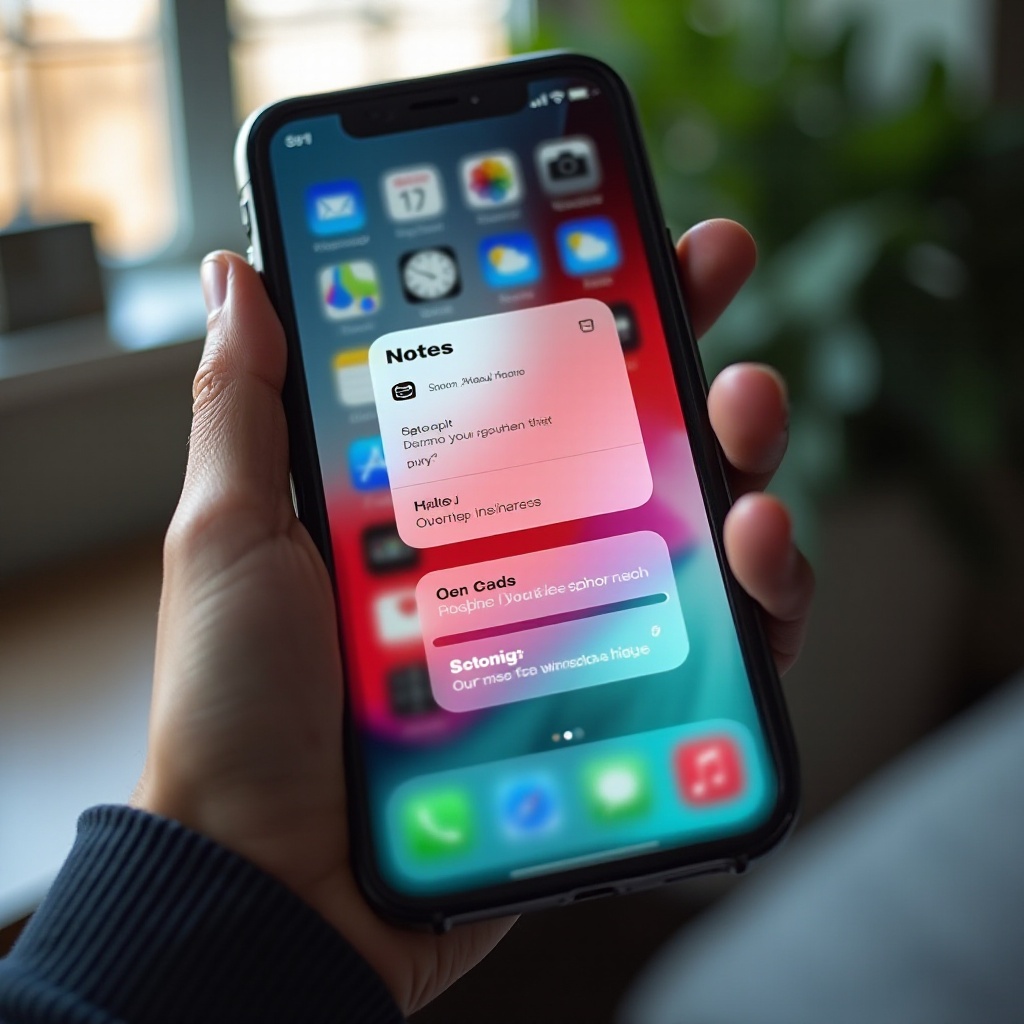
Creating a widget for the Notes app on your iPhone is easier than you might think, requiring just a few simple steps:
- Open the Notes App: Ensure your notes are current, adding new ones if necessary.
- Access the Widget Gallery: Long-press your home screen until the app icons begin to jiggle, and tap the ‘+’ icon at the top-left corner.
- Locate Notes Widgets: Scroll through or search the widget library to find the Notes option. Different views of your notes are available.
- Select a Widget Style: Choose from various widget sizes and styles displaying recent notes, specific folders, or tagged notes.
- Add the Widget: Tap ‘Add Widget’ and place it on your home screen. Press ‘Done’ after arranging it as desired.
This setup shows how you can leverage native widgets to simplify access to your notes, enhancing your overall productivity.
Setting Up and Customizing the Notes Widget
Once you’ve integrated the Notes widget on your home screen, personalizing it aligns it better with your needs. Follow these steps to optimize your widget:
- Edit Widget Content: Long-press the widget and select ‘Edit Widget’ to specify which notes or folders to display.
- Customize Display Options: Choose between showing the most recent note, notes from a particular folder, or tagged notes.
- Rearrange Your Home Screen: Drag the widget to place it where you can reach it effortlessly.
- Adjust Widget Size: Modify its size by removing and then re-adding it in a new format.
- Pair with Other Widgets: Utilize the Notes widget alongside others, like Calendars or To-Do lists, for a personalized information screen.
Customizing widgets helps keep pivotal information accessible, ultimately streamlining your daily workflow.
Exploring Third-Party Apps for Enhanced Note Management
Should the native Notes widget fall short of your demands, third-party apps are worth exploring for additional capabilities. Notable options include:
- Notion: Esteemed for customization and comprehensive note-taking tools, Notion widgets offer versatile note displays.
- Evernote: Renowned for its organizing features, Evernote widgets show notes by tags or notebooks for quick access.
- Microsoft OneNote: Known for rich text features, this app offers flexible widget configurations to display your notes.
These apps can deliver greater customization options, artistic enhancements, multi-platform sync capabilities, and optimized organization.
Tips for Organizing Notes on Your Home Screen
To enrich your efficiency, organizing notes directly on your home screen is crucial:
- Prioritize Key Notes: Pin or manage frequently used notes at the top or in visible widgets.
- Use Consistent Titles and Tags: Simplifies searchability and enhances navigation speed.
- Organize with Folders: Group related notes logically for concise layout on your screen.
- Routine Maintenance: Frequently update or eliminate outdated notes ensuring only relevant content is displayed.
Proper note organization paves the way for a smooth workflow, enhancing your productivity.
Troubleshooting Common Issues with Notes Widgets
Encountering issues with your Notes widgets is normal, but tentatively these can be addressed easily:
- Widgets Not Updating: Ensure all pertinent apps and iOS are up-to-date. Try removing, then re-adding the widget.
- Sync Issues: Verify your internet connection, iCloud settings, and that both devices and iCloud have the latest updates if syncing fails.
Implementing these solutions helps maintain seamless widget functionality.
Conclusion
The convenience of widgets, complemented by third-party apps, empowers you to access notes directly from your iPhone home screen. This functionally enhances organization and efficiency. With some setup and customization, your critical information remains only a glance away, simplifying daily tasks. Embark on this organized digital journey with our guide to improve your life.
Frequently Asked Questions
How do I resize the Notes widget on my iPhone home screen?
To resize, remove the widget, then re-add it in the chosen size using the widget gallery and selecting the preferred format.
Can I add multiple Notes widgets to my home screen?
Yes, multiple Notes widgets can be added, each displaying different notes, folders, or tags to enhance organization.
Do third-party note-taking apps offer more customization?
Yes, apps like Notion and Evernote provide extensive customization and synchronization features surpassing the native Notes app.