
How to Enable WiFi Calling on Android: A Comprehensive Guide
Introduction
In today’s digital age, staying connected even in areas with weak cellular signal is vital. WiFi calling is an essential feature that addresses this need by allowing users to make calls and send texts through a WiFi network. This capability is highly beneficial for those encountering low signal areas or seeking to minimize roaming charges while traveling. Throughout this guide, we will delve into enabling WiFi calling on Android devices, resolving common issues, and optimizing the feature for the best results. By the end, you’ll be equipped to harness WiFi calling’s full potential, keeping you seamlessly connected.
Understanding WiFi Calling
Understanding the inner workings of WiFi calling is essential for utilizing its benefits to the fullest extent on your Android device.
What is WiFi Calling?
WiFi calling is a feature that lets you make phone calls and send messages using a WiFi network rather than depending primarily on a mobile carrier’s network. It integrates smoothly with your device’s native calling and messaging applications, allowing communication to flow even in areas with weak cellular signals.
Benefits of WiFi Calling
With WiFi calling, you enhance your device’s connectivity capabilities, particularly in locations with poor cellular reception. It proves especially valuable when traveling internationally, as it can help avoid exorbitant roaming charges, routing calls and messages via WiFi networks instead. Improved call quality is another advantage, ensuring conversations are clear and reliable, particularly in indoor settings where WiFi signals overshadow mobile networks.
Compatibility and Requirements
Before you proceed with enabling WiFi calling on your Android phone, it’s essential to confirm that both your device and your mobile carrier support this feature.
Checking Device Compatibility
Firstly, determine if your Android device supports WiFi calling. Most modern devices from manufacturers like Samsung and Google include this feature. You can verify this by checking your device settings typically located under the “Network & Internet” or “Connections” tabs in the settings menu.
Carrier Support for WiFi Calling
Not every carrier offers WiFi calling as a service, so it’s imperative to verify your mobile carrier’s policy. This information is generally available on your carrier’s website or through their customer service. Major carriers such as Verizon, AT&T, and T-Mobile provide this feature, though it’s subject to varied terms and conditions, which should be verified before enabling.
How to Enable WiFi Calling on Android
Setting up WiFi calling may slightly differ depending on your device’s make and model.
General Steps for Most Android Devices
- Open the Settings app on your device.
- Head to “Network & Internet” or “Connections.”
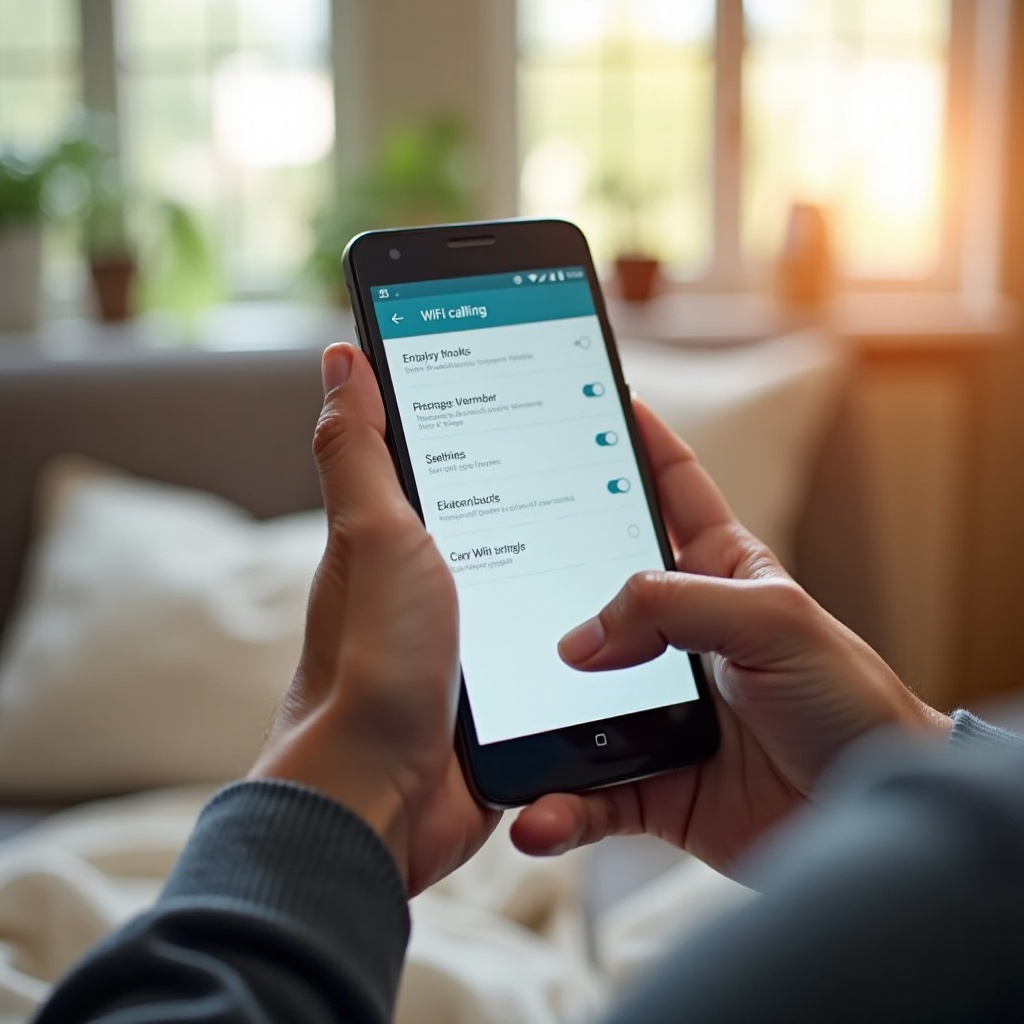
- Look for “WiFi Calling” and tap to access the menu.
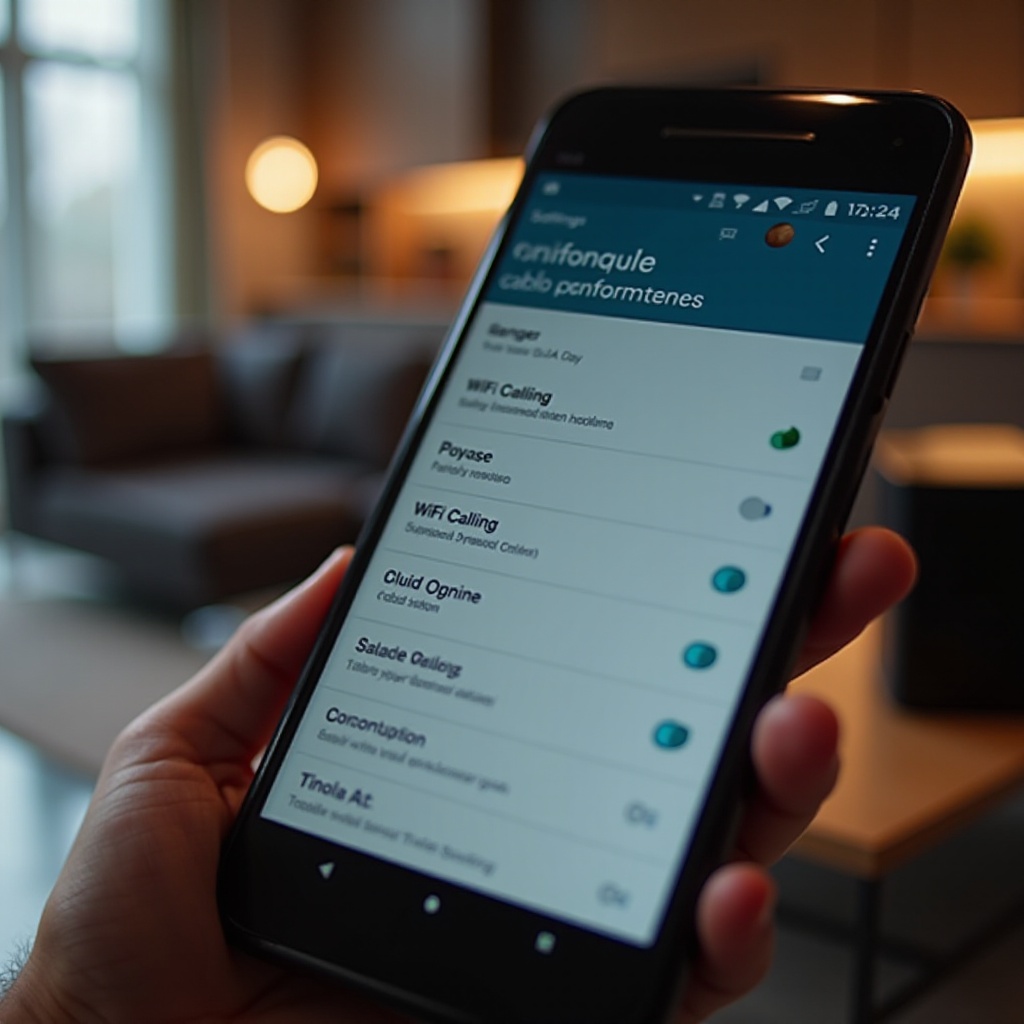
- Toggle on the WiFi Calling switch.
- Follow any prompts to finalize setup, which may include entering your emergency address.
Specific Instructions for Samsung Devices
- Launch the Phone app on your Samsung device.
- Tap the three-dot menu icon to access “Settings.”
- Find and toggle on “WiFi Calling.”
- Input any requisite details, such as your emergency address, if prompted.
Specific Instructions for Google Pixel Devices
- Open Settings on your Google Pixel device.
- Tap “Network & Internet,” then choose “Mobile Network.”
- Find “WiFi Calling” and enable it.
- Provide any necessary information if prompted.
Troubleshooting Common WiFi Calling Issues
Occasionally, challenges may arise when setting up WiFi calling. Here’s how to tackle them.
Activation Problems
When WiFi calling fails to activate, confirm that your WiFi connection is robust and your settings are accurate. Restart your device to reset connections and try activating again.
Connectivity and Call Quality
For issues with call quality, ensure your WiFi network has ample bandwidth available. Close any background applications hogging bandwidth, and adjust your phone settings to prioritize WiFi calling.
What to Do if WiFi Calling Isn’t Available
If your device or carrier does not provide WiFi calling, alternative apps like WhatsApp or Skype are excellent for WiFi-based calls, bypassing the need for carrier involvement.
Optimizing Your WiFi Calling Experience
Enhancing your WiFi calling experience can be achieved through optimized settings.
Network Settings for Better Call Quality
Ensure your router is up-to-date for optimum performance. If available, configure settings to give preference to voice traffic.
Tips for a Stable Connection
Utilize a dual-band router and position it to reduce obstructions and interference. Stay within a close range of your router during calls for a more reliable connection.
Conclusion
WiFi calling stands as a valuable enhancement to Android devices by enabling smooth communication in areas with limited cellular coverage. By learning how to enable and optimize this feature, you can experience improved call quality and cost savings, particularly while traveling. Regular updates and troubleshooting can further refine this invaluable tool, making it integral to modern connectivity.
Frequently Asked Questions
Why isn’t WiFi calling working on my Android device?
Check if both your device and carrier support WiFi calling and ensure a strong WiFi connection. Confirm settings are accurate, and restart your device to fix any potential issues.
Can WiFi calling be used internationally?
Yes, WiFi calling can be utilized internationally, enabling cost-free communication through WiFi networks without incurring roaming charges, depending on your carrier’s policy.
Does WiFi calling use my data plan?
No, WiFi calling relies on your WiFi connection which bypasses your mobile data plan, thereby not using cellular data.