
How to Fix and Prevent Paper Jams in Canon Printers
Introduction
Experiencing paper jams can disrupt productivity and create unnecessary frustration. It’s crucial to learn how to effectively resolve and prevent paper jams in your Canon printer. This comprehensive guide will provide insights into common causes, troubleshooting tactics, and prevention techniques.

Understanding Paper Jams
A paper jam occurs when a paper gets stuck in the passageway of a printer. These jams can happen at various stages and for many reasons. Recognizing signs such as unusual noises, skewed prints, or error messages on your printer helps in addressing the issue timely.
Facing paper jams regularly can be frustrating, but identifying their causes can make a significant difference. Let’s explore the common reasons for these annoying interruptions.
Common Causes of Paper Jams in Canon Printers
-
Incorrect Paper Size and Type: Ensure the printer settings match the loaded paper size and type. Mismatched settings can lead to feeding issues.
-
Poor Paper Quality: Using low-quality paper can cause paper jams. Opt for high-quality, printer-specific paper to reduce this risk.
-
Overloaded Paper Tray: Avoid overfilling the paper tray, as it may cause papers to be pulled incorrectly, resulting in a jam. Always check the manufacturer’s guidelines for paper capacity.
Understanding these causes sets the stage for effective troubleshooting and prevention steps, which we will discuss next.
Troubleshooting and Fixing a Paper Jam
Addressing a paper jam swiftly and safely can prevent further issues:
-
Initial Checks and Safety Precautions: Begin by turning off and unplugging the printer. This action ensures your safety and avoids electrical mishaps.
-
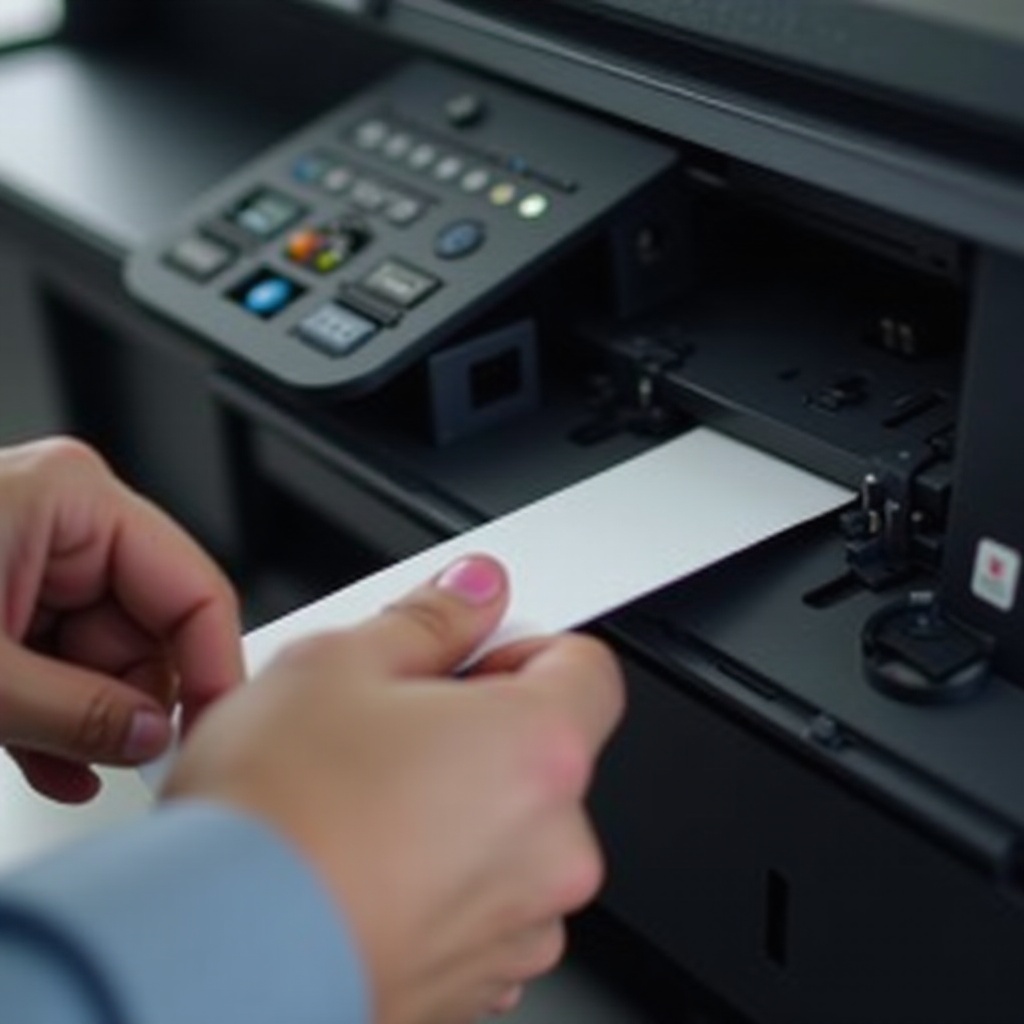
Removing Jammed Paper: Open your printer carefully, following the manufacturer’s instructions. Look for jammed paper in the feeder area and gently pull it out to avoid tearing.
-
Resetting Your Canon Printer: Once the paper is cleared, restart your printer to let it calibrate itself, then try printing a test page to confirm the issue is resolved.
With the immediate problem resolved, we can shift our focus toward implementing preventative measures to minimize future occurrences.
Advanced Prevention Techniques
Employing preventative tactics ensures long-term functionality:
-
Regular Maintenance and Cleaning: Accumulated dust can obstruct smooth paper passage. Regularly clean the feed rollers and interior to prevent debris build-up.
-
Proper Paper Loading Techniques: Fan the paper stack before loading it to avoid sticking. Adjust the guides to secure the paper without pressing too tight.
Implementing these prevention strategies not only minimizes jams but also enhances printer longevity and performance.
Tips for Long-term Printer Health
To ensure your printer remains in optimal condition, keep the firmware updated and adhere to any guidelines for usage and maintenance. This proactive approach solves minor issues before they escalate.
Conclusion
Understanding and addressing paper jams in Canon printers is pivotal for uninterrupted printing. By identifying causes, following troubleshooting steps, and adopting preventative practices, you can significantly enhance your printing experience.
Frequently Asked Questions
How can I avoid paper jams in the future?
Regular maintenance and using the correct paper type can significantly reduce paper jams.
What should I do if my Canon printer frequently jams?
Ensure correct paper loading and printer settings. If problems persist, consider a professional inspection.
Is it okay to use recycled paper in my Canon printer?
Yes, but make sure it’s high quality and specifically intended for printers to avoid jams.