
How to Hook Up an External Monitor to Your iMac: A Comprehensive Guide
Introduction
Hooking up an external monitor to your iMac can elevate your computing experience significantly. It offers expanded screen space, boosts productivity, and provides an immersive display ideal for creative tasks. Whether you’re a professional aiming to enhance efficiency or simply enjoy the luxury of multiple screens, knowing how to set up your external monitor is crucial. This guide gives you clear instructions and troubleshooting tips for a flawless dual monitor setup.
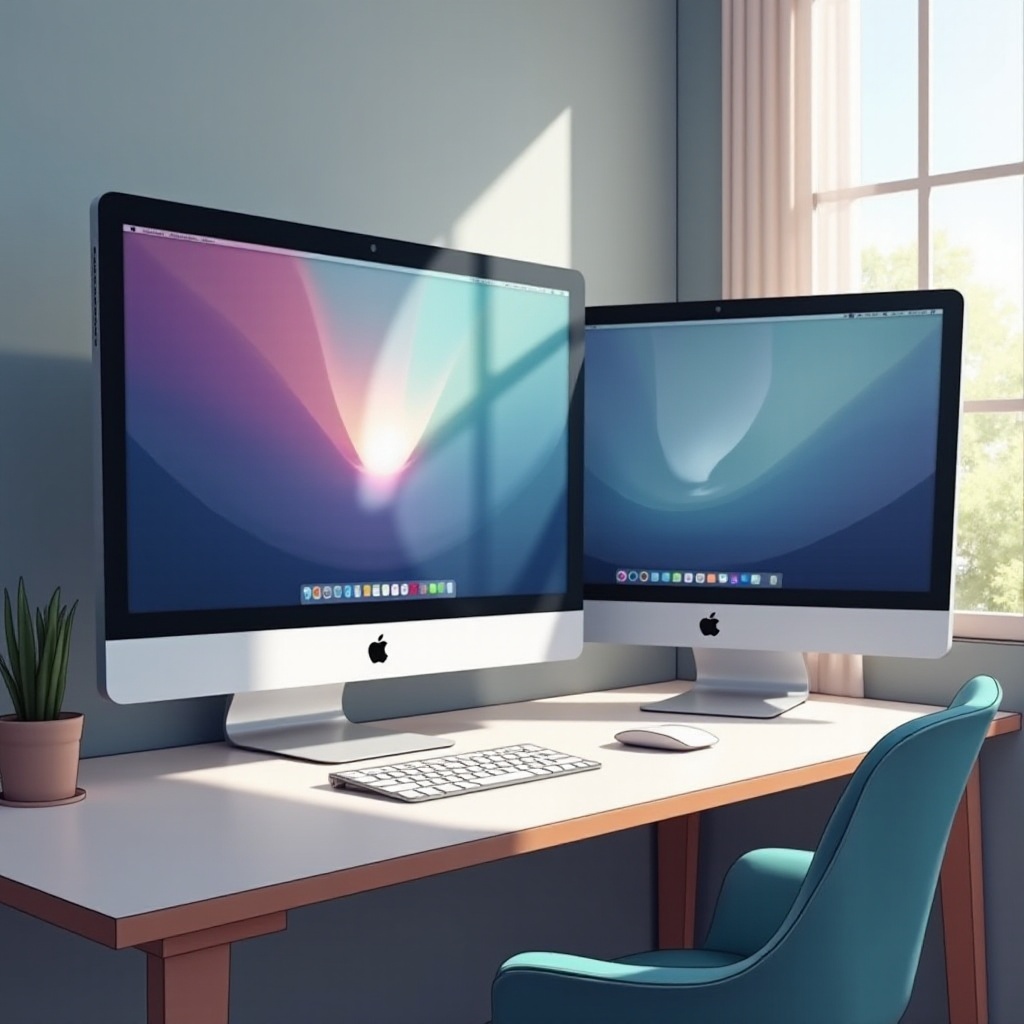
Understanding Your iMac’s Ports and Monitor Compatibility
Before connecting an external monitor, it’s essential to understand the ports available on your iMac and ensure monitor compatibility. Different iMac models feature varied ports, including Thunderbolt, USB-C, and HDMI. Identify these ports by examining your iMac or consulting its user guide.
External monitors typically have HDMI, DisplayPort, or USB-C ports. Ensure that your monitor’s connection type matches or can be adapted to your iMac’s ports. Additionally, verify compatibility in terms of resolution and refresh rate, ensuring your monitor supports the output of your iMac for optimal performance.
A good grasp of your iMac’s connectivity options and your monitor’s requirements ensures a seamless transition to building your dual-monitor setup.
Gathering the Right Cables and Adapters
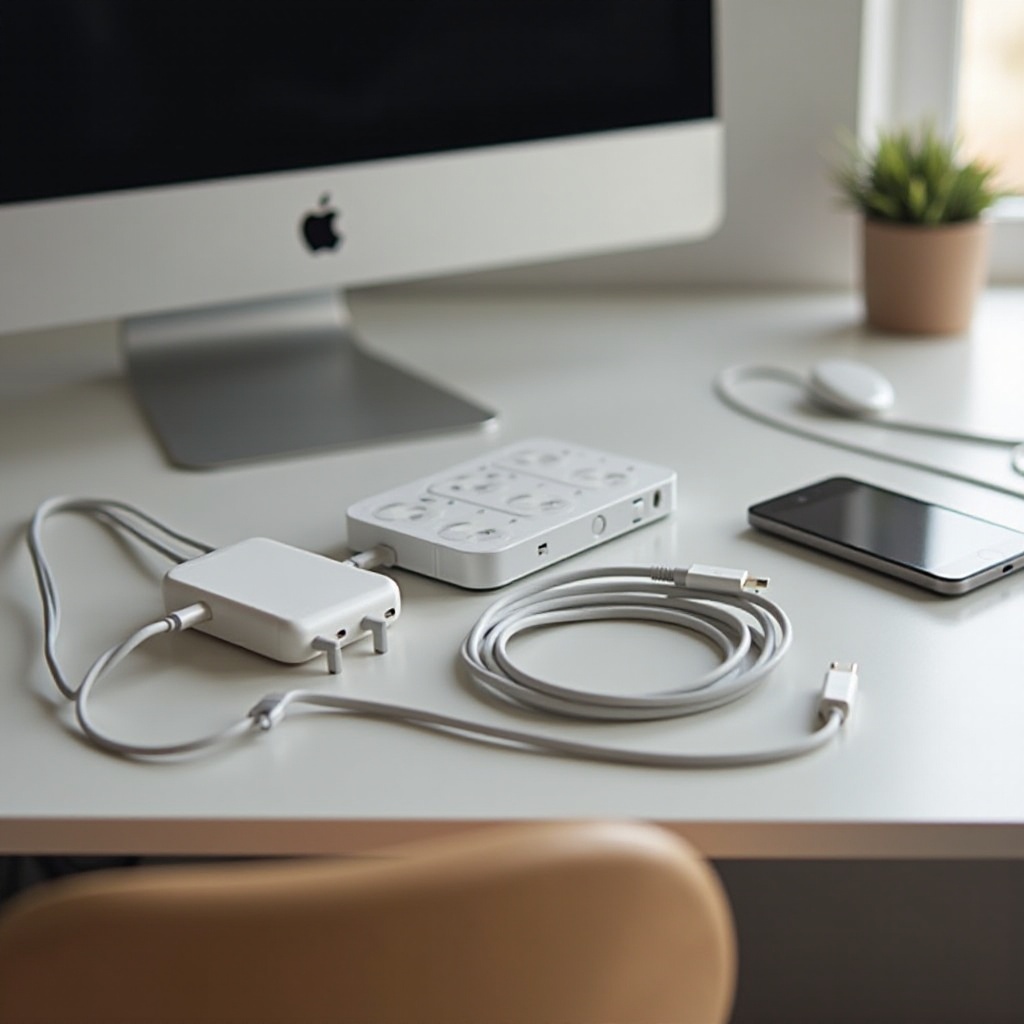
Gathering the necessary cables and adapters is a crucial step in the setup process. Select a cable that matches the connection type. For instance, if your iMac has a Thunderbolt port and your monitor an HDMI port, obtain a Thunderbolt to HDMI cable.
If direct cable compatibility is an issue, invest in quality adapters, such as a Thunderbolt to HDMI adapter. With cables and adapters at hand, you can move forward with connecting your external monitor to your iMac, laying the groundwork for a functional dual monitor setup.
Connecting the External Monitor to Your iMac
Connecting your monitor to your iMac is straightforward:
- Turn off both your iMac and the external monitor.
- Plug one end of the cable into your iMac’s corresponding port.
- Connect the other end to the external monitor.
- Ensure an adapter is securely connected if you’re using one.
After connecting the hardware, position your monitors side by side or stacked vertically at eye level to reduce strain and enhance comfort. With this physical connection, you can now focus on the necessary software configurations.
Configuring Display Settings on macOS
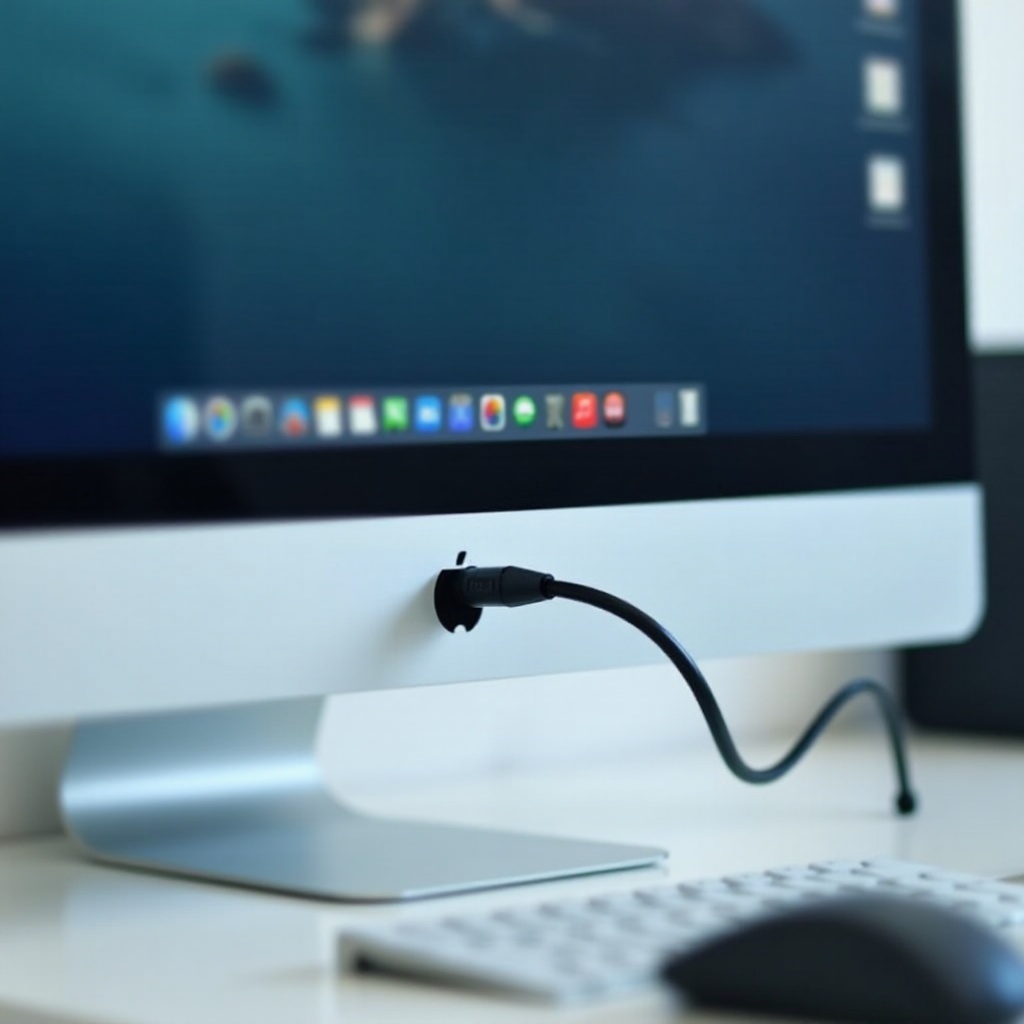
Configuring display settings ensures an integrated viewing experience. Start by accessing ‘Displays’ under ‘System Preferences’ after clicking on the Apple menu.
In the display settings, find the arrangement tab and drag the blue screens to match your physical setup. Adjust the resolution to suit your preferences. Customize color and brightness settings to maintain consistency across both displays for an even viewing experience.
Optimizing Dual Monitor Workflow
With hardware and software set up, you can now enhance productivity:
- Utilize full-screen mode on one monitor while keeping tools or communication apps on the other.
- Dedicate one monitor to primary tasks and the other to supplementary information.
- Utilize macOS features like Mission Control for easy navigation.
Optimizing your settings and habits leads to improved productivity and user experience. Despite this, you may encounter connectivity issues that require troubleshooting.
Troubleshooting Common Issues
Resolving connectivity issues:
- Ensure cables are secure, restart devices, and manually detect displays in ‘System Preferences’ if your monitor is undetected.
- Reduce the resolution or check for cable damage if experiencing flickering.
- Select optimal resolution settings under ‘System Preferences’ to adjust display problems directly.
These troubleshooting techniques help resolve most issues, ensuring a seamless dual monitor setup for ongoing productivity and user enjoyment.
Conclusion
Connecting an external monitor to your iMac is a straightforward process with rewards that enhance productivity and user experience. Understanding your iMac’s hardware, configuring the correct settings, and applying productivity tips will maximize the benefits of dual displays for work and entertainment.
Frequently Asked Questions
Can I use any monitor with my iMac?
Generally, yes. If the monitor supports your iMac’s input connections or has compatible adapters, it should work.
What should I do if my iMac doesn’t recognize the external monitor?
Ensure all connections are secure, restart both devices, and manually detect displays through ‘System Preferences’.
How can I extend my display instead of mirroring it?
In ‘System Preferences’, go to ‘Displays’. Under the ‘Arrangement’ tab, ensure ‘Mirror Displays’ is unchecked to extend your display.