
Troubleshooting Guide: Fixing External Hard Drive Not Showing Up Issues
Introduction
External hard drives offer a convenient way to store and transfer data, but when they fail to appear on your device, it can disrupt your productivity. Understanding the common causes behind this issue and knowing the right steps to remedy it can quickly restore your peace of mind. This guide provides a detailed look at effective troubleshooting methods and offers preventive measures to keep your external hard drive operational.
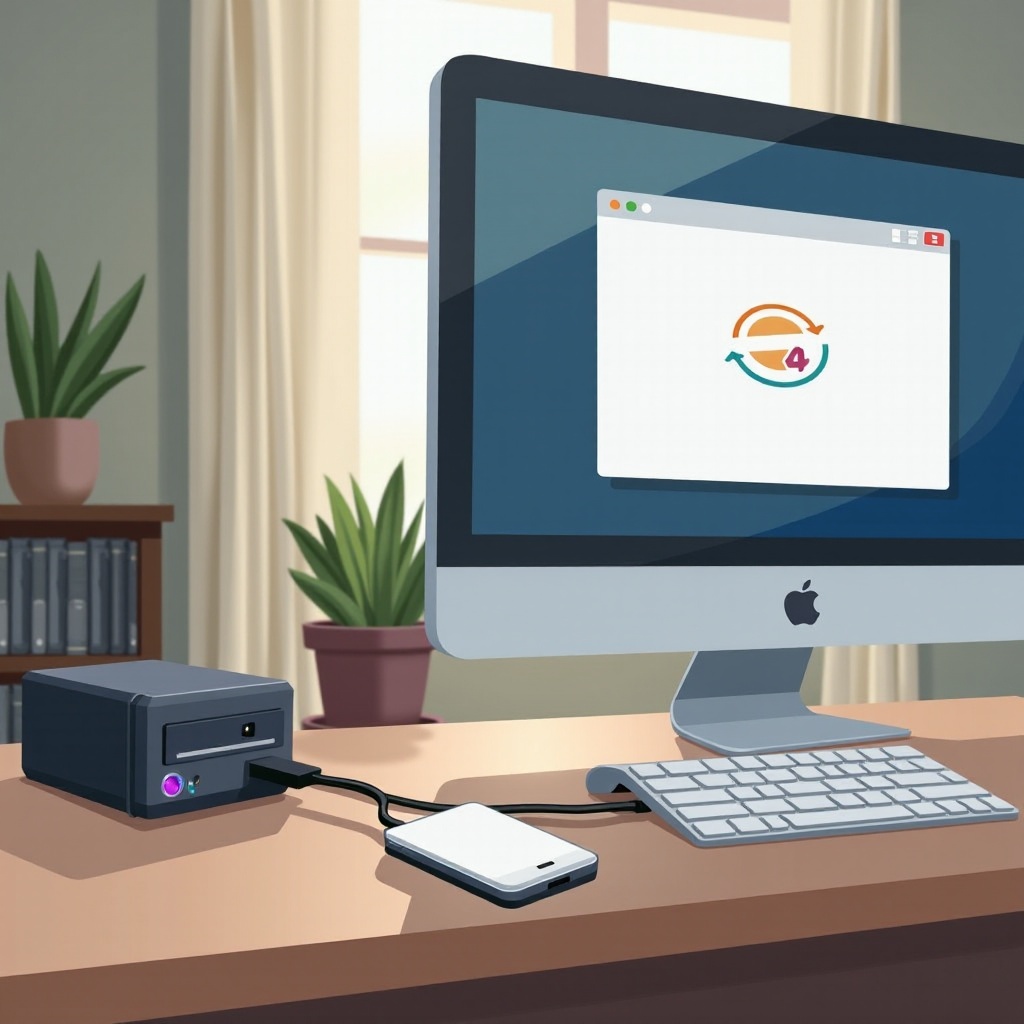
Common Causes of External Hard Drive Detection Issues
Recognizing the root causes is the first step in solving the visibility issue of your external hard drive:
- Faulty Connections: Often a simple misconnection can lead to the drive not being recognized. Ensure that all cables are plugged in securely and try different USB ports to rule out a faulty port.
- Power Supply Problems: Some drives need more power than a standard USB port can offer. Use a powered USB hub or ensure your device’s power cable is intact.
- Driver and Software Glitches: Outdated or corrupted drivers can hinder device recognition. Frequently update your system drivers to prevent software conflicts.
- File System Incompatibility: The data format used by the drive might not be supported by your operating system. Always check compatibility before connecting a drive formatted for a different system.
Understanding these issues can guide you in choosing the appropriate troubleshooting steps.

Step-by-Step Troubleshooting Guide
Here are the steps you can follow to resolve the issue of your external hard drive not showing up.
- Initial Checks and Basic Solutions:
- Verify that all connections are secure and that you switch USB ports to test for recognition.
- Reboot your computer to eliminate temporary glitches.
-
Test the external hard drive on another computer to determine if the issue is specific to your device.
-
Software and Driver Solutions:
- Conduct a search for system updates that might include crucial driver updates for external devices.
- Access your computer’s Disk Management (Windows) or Disk Utility (Mac) to see if the drive appears. If it does, assign a drive letter or mount point if necessary.
-
For Windows users, navigate to the Device Manager to update or reinstall drivers for the external hard drive.
-
Advanced Troubleshooting Steps:
- In Windows, use Device Manager to confirm the system recognizes the hardware. In Mac, check System Information.
- If all else fails and you absolutely need device functionality rather than data retrieval, consider backing up essential data and then formatting the drive.
Solving these issues with the above troubleshooting steps can often lead to a quick resolution and restore access to your data.
Preventive Measures and Best Practices
Preventing issues with your external hard drive can save you time and preserve your data in the long run.
-
Safe Handling and Storage: Handle the device carefully. Ensuring that the drive is stored in a protective case can prevent physical damage.
-
Regular Backups and Updates: Maintain a schedule for data backups to another medium or cloud storage, and always keep your drivers and operating systems updated.
-
Recognizing Early Warning Signs: Look for symptoms like slow access times or error messages, which can be signs of impending drive failure.
Implementing these best practices will enhance the reliability of your external drives and prevent future connectivity issues.

Conclusion
Although encountering an issue where your external hard drive does not show up can be frustrating, through understanding and applying the above troubleshooting methods, most users find a resolution. Incorporating proactive habits like regular backups and system updates will protect against potential issues. If all else fails, seeking expert assistance ensures that you take appropriate measures to resolve more complex problems.
Frequently Asked Questions
Why is my external hard drive not showing up on my Mac/Windows?
It could be due to connection issues, inadequate power, driver glitches, or file system incompatibility. Regular troubleshooting often resolves the issue.
How can I recover data from an undetected external hard drive?
Utilize data recovery software or services that specialize in retrieving data from unrecognized drives. Regular data backups also help prevent loss.
What preventive measures can I take to ensure my external hard drive stays functional?
Handle your drive carefully, use a protective case, keep software updated, schedule regular backups, and be alert to any signs of malfunction.