
How to Set Up Your PS4 on a TV: A Comprehensive Guide for 2024
Introduction
Setting up your PS4 on a TV enhances your gaming experience significantly. Whether you are a veteran gamer or just entering the world of console gaming, ensuring your PS4 is properly connected and optimized is essential for a seamless experience. In this guide, we will walk through each step to get you ready to enjoy immersive gaming with superior picture and sound quality.
Gather Your Equipment
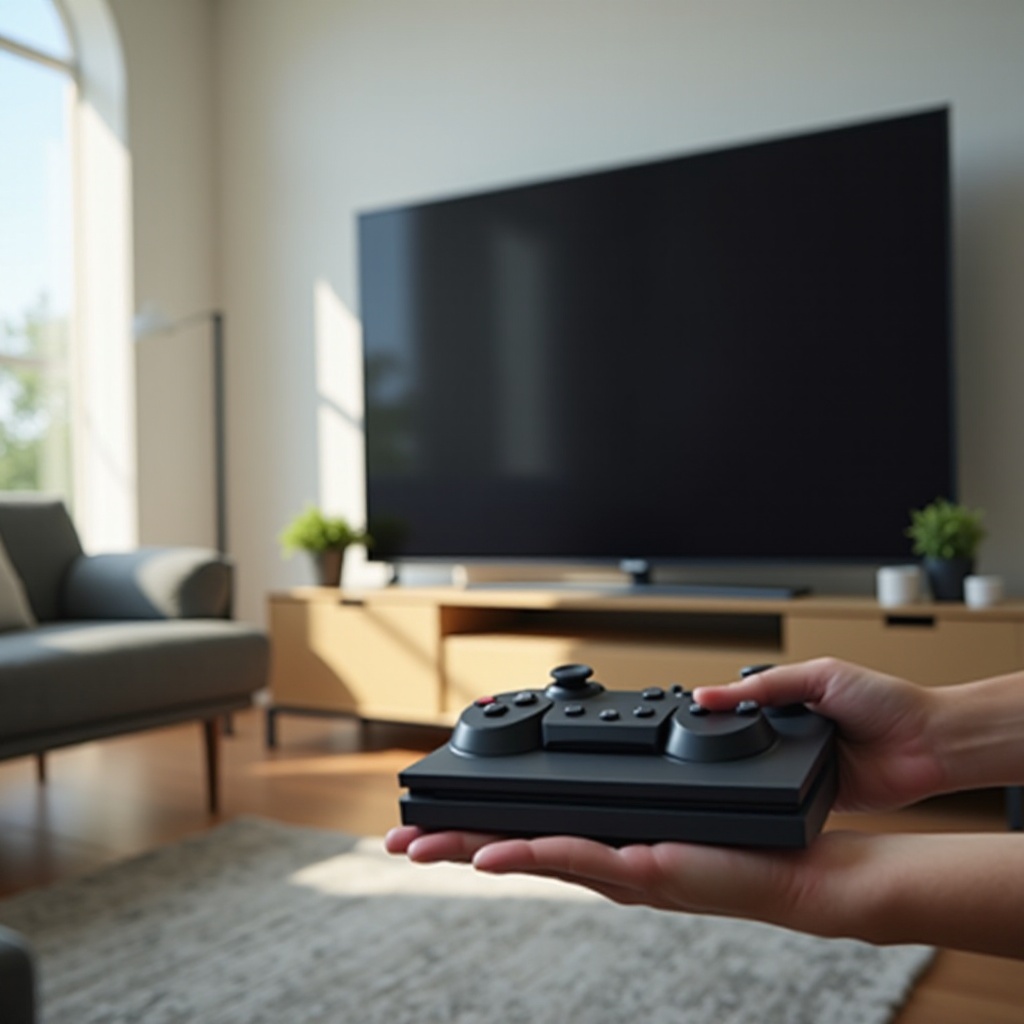
Before plugging in, ensure you have all the necessary components for setup. Having the right equipment at hand will make the process smoother and reduce interruptions.
- PS4 Console: Inspect to ensure it is functioning properly.
- HDMI Cable: Required for connecting your PS4 to the TV.
- Power Cord: Essential for powering the console.
- Controller and USB Charging Cable: To navigate the setup menu.
- Internet Connection: Wi-Fi or Ethernet for updates and online play.
With these tools in place, you’re ready to proceed.
Connecting Your PS4 to the TV
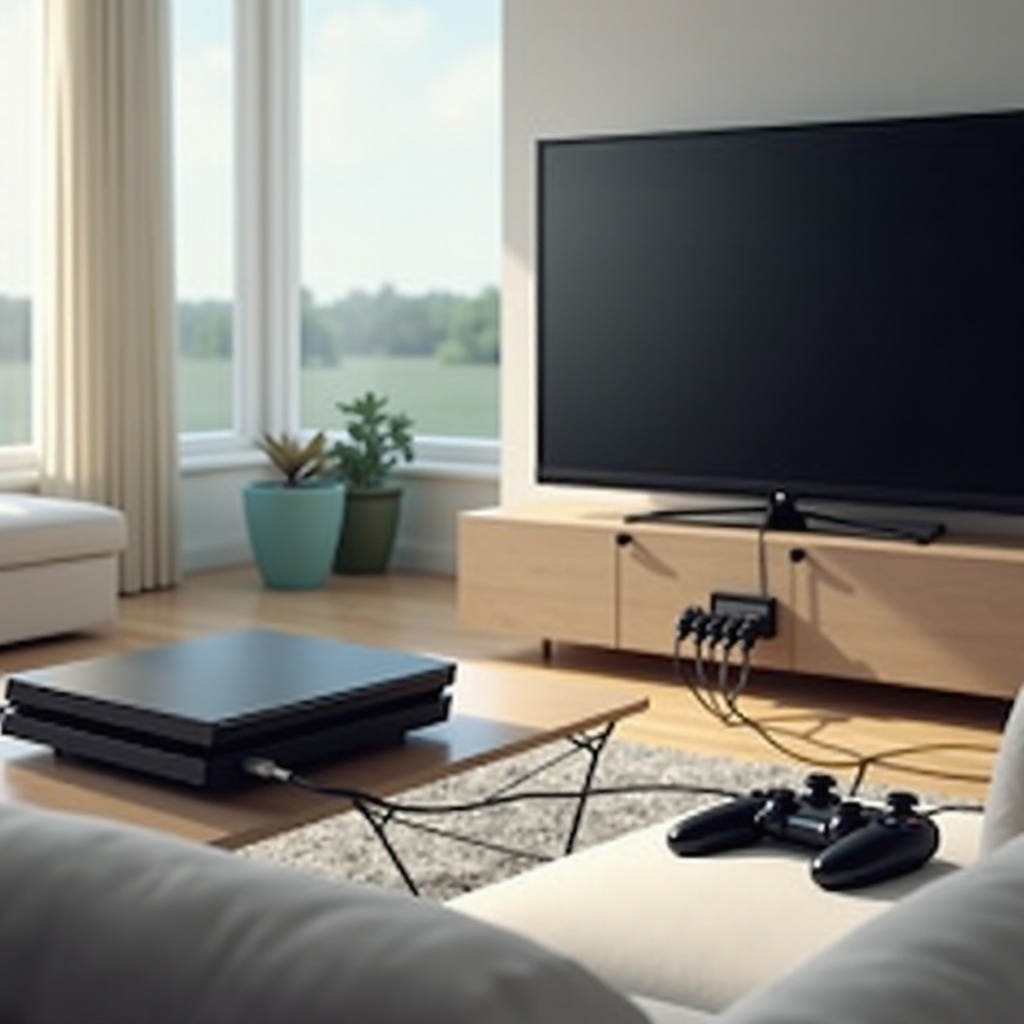
Once you’ve gathered all you need, it’s time to physically set up your PS4 with your TV. Make sure both devices are switched off initially to prevent electrical issues.
- Using the HDMI Cable:
- Connect one end to the PS4’s HDMI port.
-
Attach the other end to an HDMI port on your TV.
-
Plugging in the Power Cord:
- Insert the power connector into the PS4.
-
Plug it into an electrical outlet.
-
Switching to the Correct HDMI Input on Your TV:
- Power up your TV and navigate to the input selection.
- Select the HDMI input connected to your PS4.
This connection phase is a fundamental step in establishing a strong link between your devices.
Initial PS4 Setup
With your PS4 connected, it’s time to handle the on-screen setup. This part establishes the system’s basic settings and network connectivity.
- Setting Language and Region Preferences:
- Choose your language preference once the PS4 powers on.
-
Set the region according to your location following the prompts.
-
Connecting to Internet:
- For Wi-Fi: Go to ‘Network’ settings, find your Wi-Fi network and enter the password.
- For Wired: Connect an Ethernet cable from your router/modem to the PS4’s LAN port.
Configuring these settings allows your PS4 to access updates and online features efficiently.
Optimize Picture and Sound Settings
Optimized picture and sound settings can drastically change your gaming experience. Ensuring that both aspects are fine-tuned will provide the best audiovisual quality.
- Adjusting Video Output Resolution:
- Access ‘Sound and Screen’ settings, select ‘Video Output Settings.
-
Pick the highest compatible resolution, generally 1080p or 4K depending on your TV.
-
Configuring Audio Settings:
- In the same settings menu, go to ‘Audio Output Settings.
- Choose the correct audio output method, such as HDMI or Optical, according to your sound system.
These adjustments optimize your experience with true-to-life visuals and clear sound.
Troubleshooting Common Issues
Occasionally, you might encounter problems despite following the setup steps. Here’s how to fix frequent issues so you can return to gaming quickly.
- Resolving the ‘No Signal’ Error:
- Confirm all cables are connected properly.
-
Try a different HDMI port or cable if necessary.
-
Fixing HDMI Cable Problems:
- Unplug and then reconnect the HDMI cable.
-
Inspect for damage, replacing if needed to prevent connectivity issues.
-
Addressing Internet Connectivity Issues:
- Restart your PS4 and router.
- Verify your Wi-Fi credentials or check your Ethernet connection.
These solutions allow you to address issues swiftly and minimize downtime.
Conclusion
Setting up your PS4 to a TV is a straightforward process when you have a step-by-step guide. This walkthrough equips you with the knowledge to ensure a smooth start in gaming and an optimal multimedia experience. Whether through visual settings or troubleshooting, each step brings you closer to gaming perfection. Embrace the world of gaming with no interruptions using these guidelines.
Frequently Asked Questions
What should I do if my TV doesn’t recognize the PS4?
Ensure the HDMI cable is connected properly and the TV is on the correct input. Restart both devices if needed.
Can I connect my PS4 to any TV?
Yes, as long as the TV has an HDMI port. Older TVs may need additional adapters.
How do I improve the sound quality on my setup?
Consider using external speakers or sound systems via HDMI or optical ports for enhanced audio quality.