
How to Replace RAM in a Laptop: A Comprehensive Guide (2024)
Introduction
Upgrading your laptop’s RAM significantly enhances its performance and multitasking capabilities. Whether you’re dealing with sluggish behavior or memory shortages, installing additional RAM can provide the boost your system needs. This guide will walk you through the steps to replace RAM in a laptop, ensuring a smooth and successful upgrade.
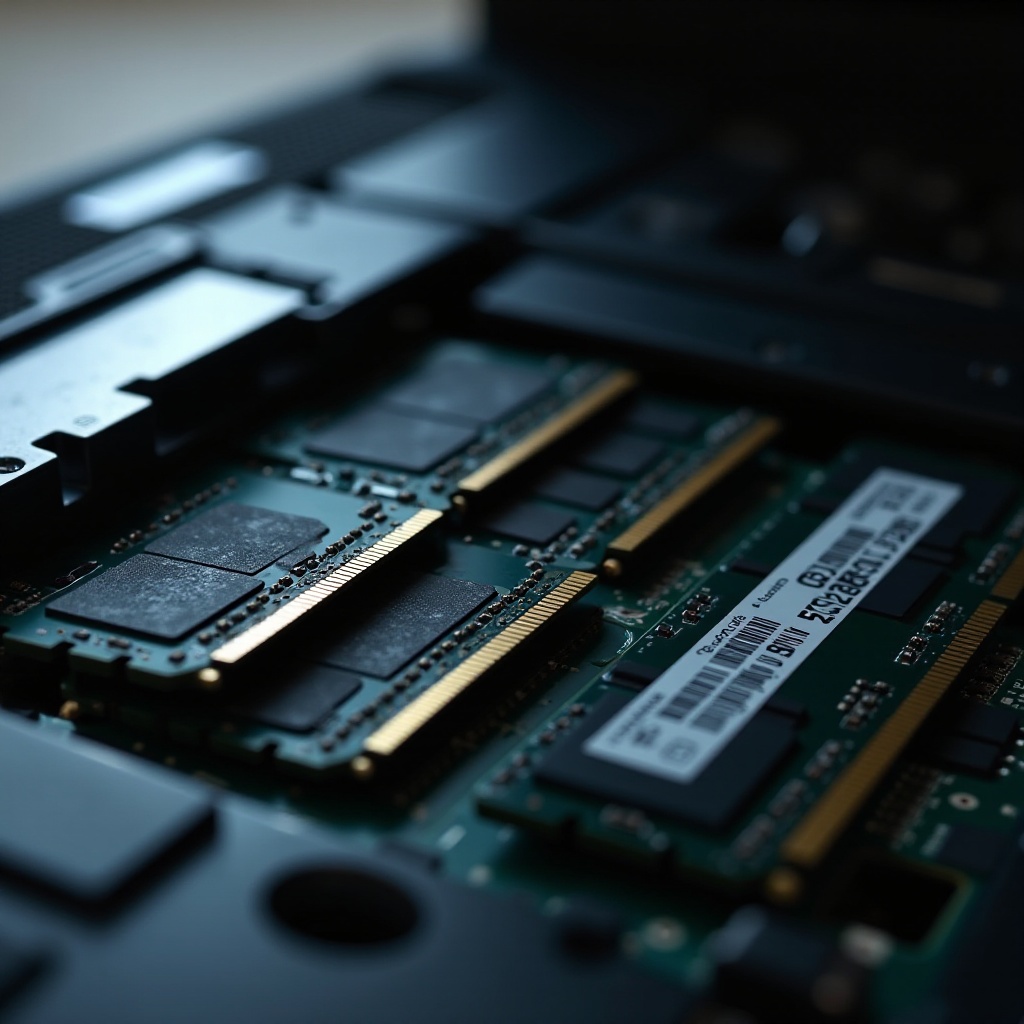
Understanding RAM and Its Importance
Before diving into the replacement process, it’s important to grasp the basics of RAM and its impact on your laptop.
What is RAM?
RAM stands for Random Access Memory, serving as your laptop’s short-term data storage. It’s critical for running applications swiftly and efficiently.
Why Upgrade RAM?
Upgrading RAM allows your laptop to handle more applications simultaneously, improving speed and overall performance, especially for high-demand software.
Types of RAM: DDR3 vs. DDR4
Understanding the different types, such as DDR3 and DDR4, is crucial because compatibility influences your choice. DDR4 offers better speed and efficiency than its predecessor, DDR3.
With this knowledge, we can now explore the indicators that signify the need for a RAM upgrade.
Assessing the Need for a RAM Upgrade
Determining if a RAM upgrade is necessary is essential before proceeding.
Signs Your Laptop Needs More RAM
If you experience frequent system freezes, slow multitasking, or lengthy boot times, additional RAM could alleviate these issues.
Analyzing System Requirements
Utilize built-in tools or third-party software to monitor your current RAM usage and system requirements. This assessment helps in deciding whether an upgrade will benefit your setup.
After understanding the need, it’s time to prepare for the replacement.
Preparing for the RAM Replacement
Preparation is key to ensuring a successful RAM upgrade.
Checking Laptop Compatibility
Verify that your laptop supports more RAM by consulting the user manual or manufacturer’s website for specifics, like the maximum RAM capacity.
Tools Required for RAM Installation
Make sure you have the right tools: a screwdriver, an antistatic wrist strap, and a clean workspace are recommended for safety and efficiency.
Tips for Purchasing the Right RAM
Choosing the right RAM involves matching the type and capacity with your laptop’s specifications. Stick to reputable brands for reliability.
Once prepared, follow these steps for a seamless RAM replacement.
Step-by-Step Guide to Replacing Laptop RAM
Replacing RAM can be straightforward. Follow these steps carefully.
-
Backing Up Data and Powering Down – First, back up your crucial files to prevent potential data loss. Shut down the laptop and disconnect all external cables.
-
Opening the Laptop Case Safely – Unscrew the back panel using your screwdriver. Carefully lift the panel to access the internal components, paying attention not to damage any parts.
-
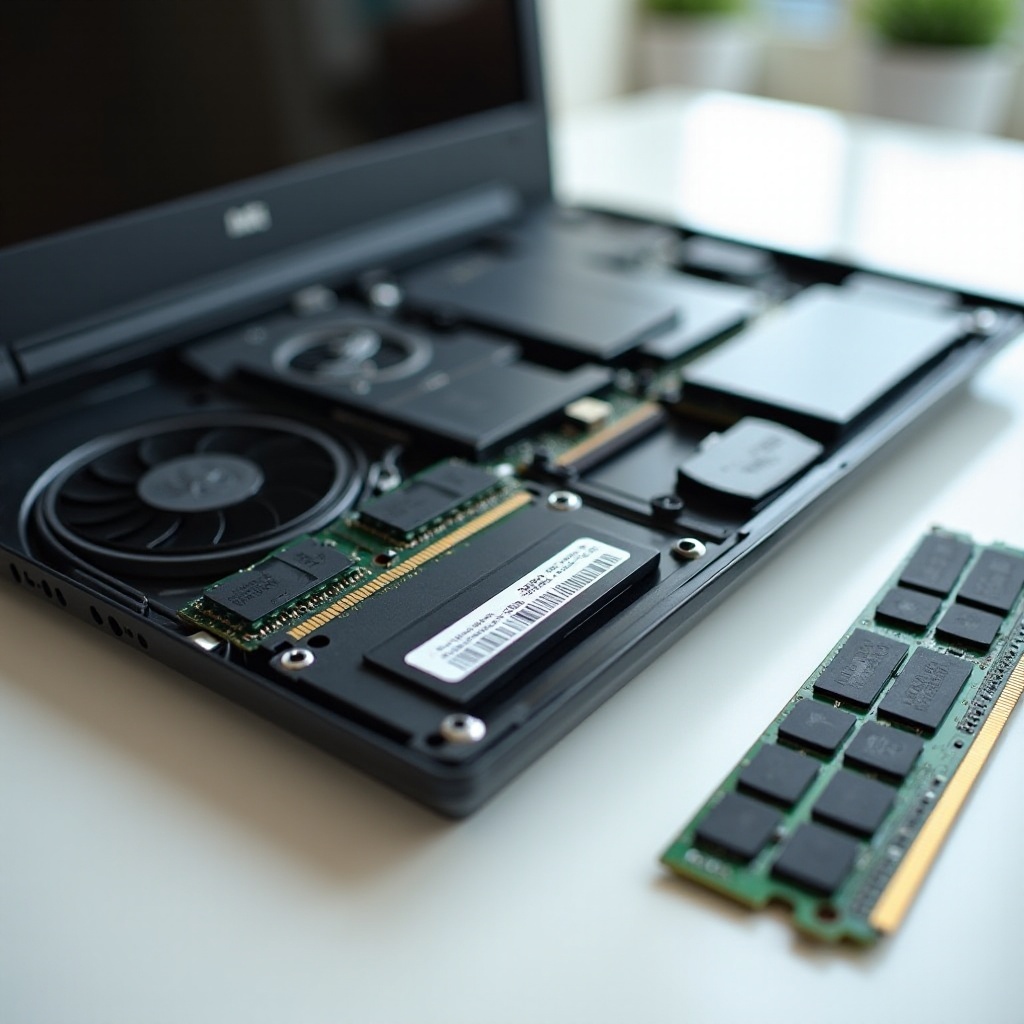
Removing the Existing RAM Module – Press the side clips of the RAM module to release it gently. Carefully slide the module out of the slot without applying too much force.
-
Installing the New RAM Module – Align your new RAM module with the slot and insert it until you hear a click, indicating it’s securely in place.
-
Reassembling and Booting Up – Replace the back panel and screw it firmly. Reconnect cables, then power up the laptop to see if the new RAM is operational.
Post-installation checks ensure the upgrade is successful and trouble-free.
Post-Installation Checks and Troubleshooting
Now that your new RAM is installed, verify everything is functioning correctly.
Verifying System Recognition of New RAM
Check your system settings to confirm it accurately recognizes the new RAM capacity. The increase should reflect in your system information.
Troubleshooting Common RAM Issues
If your laptop fails to recognize the new RAM, revisit the installation to ensure the module is seated correctly and verify compatibility. Updating your BIOS might also resolve recognition issues.
By following these detailed instructions, upgrading your laptop’s RAM can ensure better performance, extended life, and a more enjoyable user experience.

Conclusion
Replacing your laptop’s RAM is a straightforward process with significant rewards. By increasing your device’s memory, you ensure smoother multitasking, faster applications, and enhanced overall performance. Prepare properly and follow step-by-step guidance for the best results.
Frequently Asked Questions
Can I upgrade the RAM in any laptop?
Not all laptops are designed for RAM upgrades. It’s vital to check your specific model’s manual or the manufacturer’s website for capabilities and limitations.
What should I do if my laptop doesn’t recognize the new RAM?
Ensure the RAM is compatible and properly seated. If issues persist, update the BIOS or consult your laptop’s manual for compatibility issues.
How often should I upgrade my laptop’s RAM?
Consider upgrading RAM when performance slows or you frequently use memory-intensive applications, ensuring compatibility with your system requirements.