
Dell Laptop Cord Replacement: A Complete Guide
Introduction
A reliable power source is essential for the optimal performance of your Dell laptop. The power cord, often overlooked, serves as your device’s lifeline. If it becomes lost or faulty, replacing it becomes vital. Many laptop users find the process of choosing a suitable replacement bewildering, especially with the plethora of options available. However, by understanding some essential details and following simple steps, you can ensure a seamless Dell laptop cord replacement. This guide simplifies the complexities, offering you clear instructions and tips for maintaining your new cord over time.
Understanding the Importance of the Right Replacement Cord
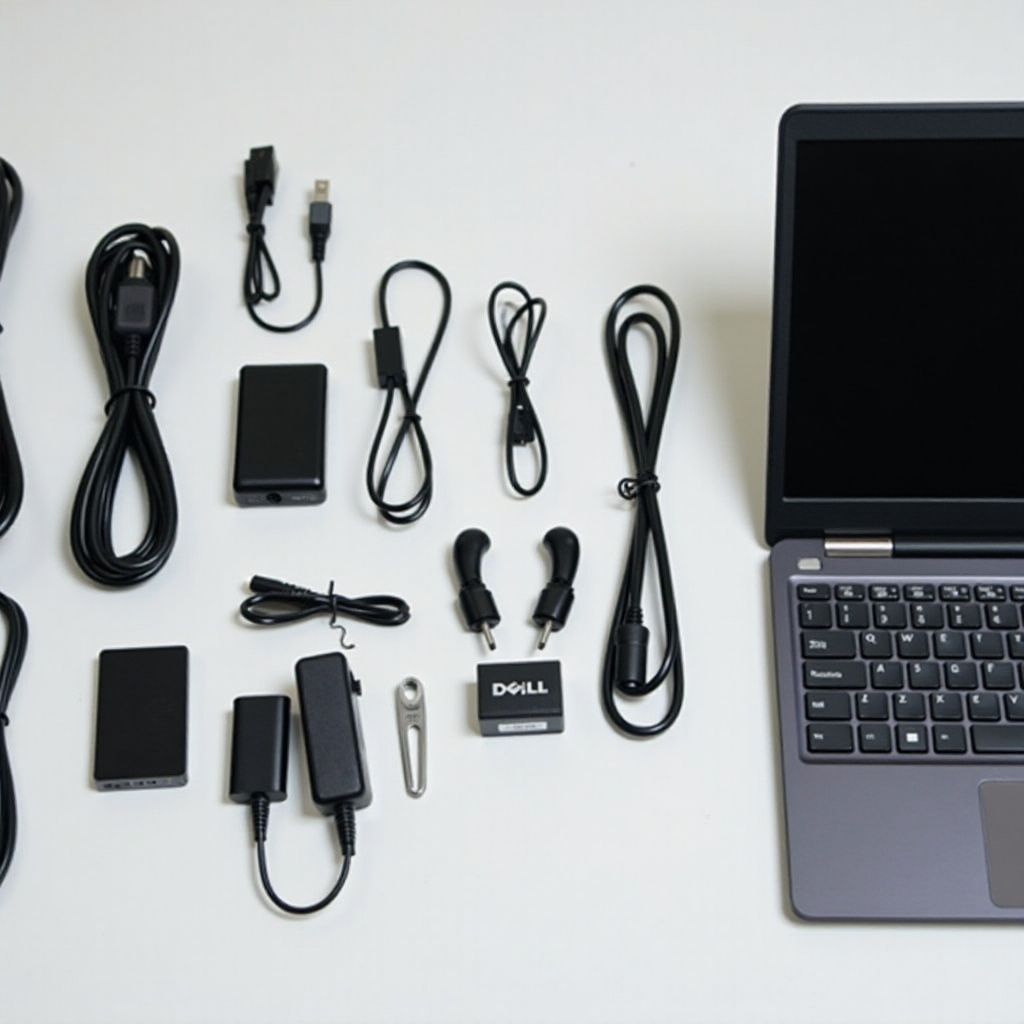
The significance of the correct replacement cord cannot be underestimated. It is integral to maintaining your laptop’s continuous performance without interruptions. Using an incorrect cord can lead to issues such as incomplete charging cycles or, in severe cases, damage to the laptop’s internal components. The compatibility factor is crucial, aligning the chosen cord with Dell’s high engineering standards.
Moreover, authenticity assures safety. Genuine Dell cords are designed to prevent risks such as overheating or electrical faults, which can pose significant safety hazards. Opting for a certified replacement extends your laptop’s health, providing consistent performance. Understanding these stakes emphasizes the necessity of making a well-informed decision.
Identifying the Right Dell Laptop Cord
Checking Specifications
Selecting an apt replacement cord begins with inspecting your laptop’s specifications. Check for wattage, voltage, and amperage numbers, which are typically listed on your current cord or within the laptop’s documentation. These figures should correspond closely with those on the new cord to ensure full functionality and avoid conflicts.
Distinguishing Model Numbers
Another crucial factor is your Dell laptop’s model number, generally located on the device’s underside. This number helps pinpoint the compatible replacement options. It simplifies the selection process, directing you towards the perfect choice. Overlooking this detail can lead to mismatched purchases, but accurately understanding it will guide your investment in the correct replacement.
By understanding both specifications and model details, you build a solid foundation for acquiring the right cord, preventing any unnecessary complications.
Where to Purchase a Reliable Replacement Cord
Authorized Retailers
Acquiring your replacement from authorized Dell retailers guarantees you receive genuine products directly from the manufacturer. These outlets provide peace of mind regarding authenticity and support. Their direct link to Dell ensures that your new cord perfectly meets all compatibility and performance requirements.
Trusted Online Platforms
Additionally, online platforms like Amazon, Dell’s official site, and Newegg are viable options. These online spaces offer broad accessibility and convenience, especially when venturing out isn’t feasible. Prioritize vendors with solid ratings and positive consumer reviews. Always review the seller policies to ensure transparency and a smooth purchase process.
Balancing between official retailers and trusted online merchants offers flexibility, enabling you to compare and choose based on your preferences and comfort.
Step-by-Step Guide to Replacing Your Laptop Cord
Preparing for Replacement
- Ensure the new cord matches your laptop’s critical specifications.
- Prepare your workspace for the task, needing mainly a clean surface.
- Secure a backup of necessary files as a safety measure.
Safely Disconnecting the Old Cord
- Switch off your laptop, ensuring safe disconnection from the power source.
- Carefully remove the old cord, avoiding improper tugs or stretches.
- Reflect on the old cord’s wear signs, as they can inform better handling practices moving forward.
Proper Installation of the New Cord
- Connect the new cord securely to both the laptop and the power outlet.
- Confirm the connection is tight to avoid charging disruptions.
- Start your laptop to ensure the new cord functions properly.
This guideline simplifies cord replacement, minimizing room for mistakes and promoting a smooth transition.
Troubleshooting and Common Issues
Identifying Incompatibility
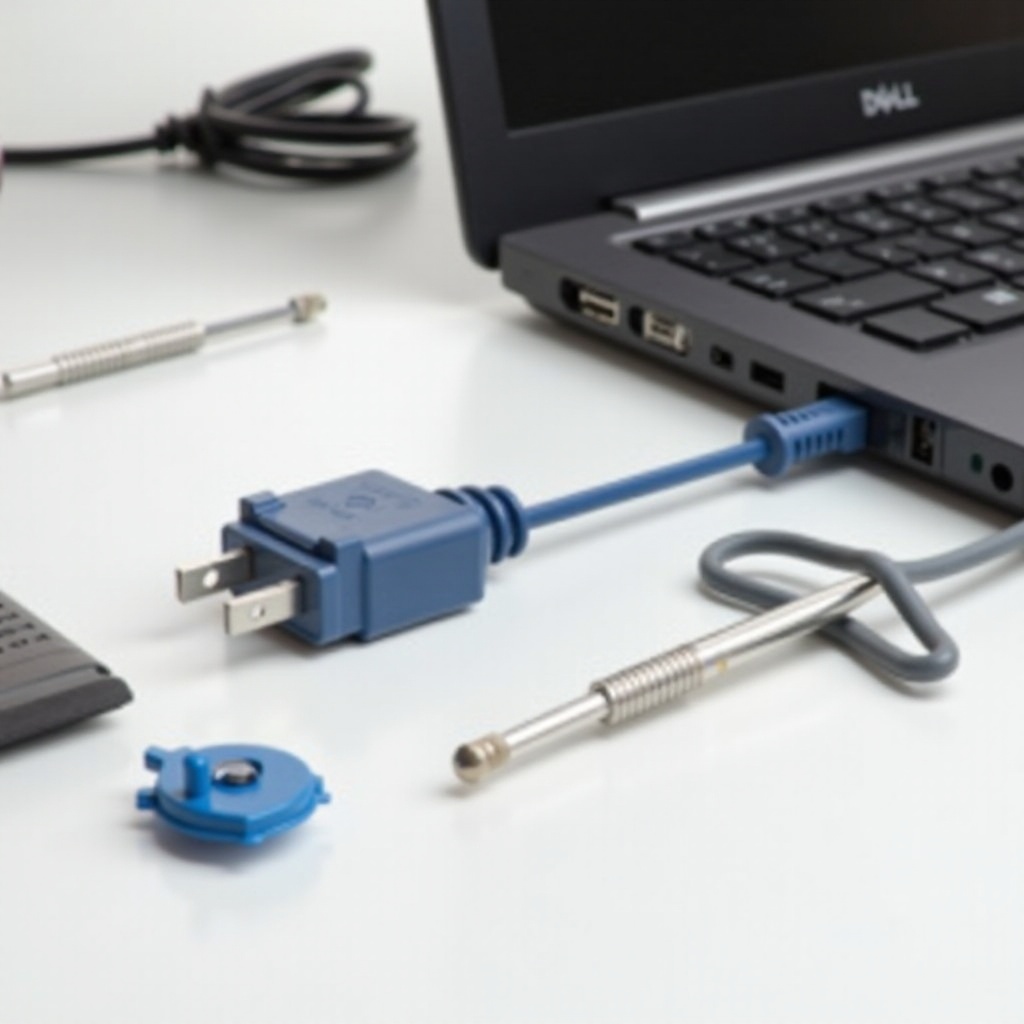
Noticing a poor fit or loose connection typically signifies incompatibility. Cross-verify the specifics of your laptop model. Sometimes, variations in design can lead to discrepancies, impacting functionality.
Addressing Failure to Charge
Should charging issues persist, inspect power sockets and connection ports along with the cord’s physical condition. Ensure you maintained compatibility regarding wattage and amperage to facilitate optimal battery charging.
Efficiently diagnosing problems as they arise helps avert extended downtime and unnecessary expenditures.
Best Practices for Cord Maintenance and Longevity
Routine Care and Storage
To maximize your cord’s lifespan, be cautious of coiling it sharply or exposing it to extreme angles. Use a gentle approach to prevent internal damage.
Travel and Portable Cord Tips
For frequent travelers, keeping the cord in a dedicated case helps avoid gear entanglement and undue stress. Additionally, a secondary cord could share the daily strain, prolonging the life of your primary one.
Dedicating care to your cord optimizes its reliability, preserving its function for years to come.
Conclusion
Though replacing your Dell laptop cord may seem challenging initially, knowing your device specifications, securing components from certified sellers, and following a direct guide ensures success. Maintenance and routine checks further extend the cord’s capacity, guaranteeing efficient operation of your laptop for longer durations.
Frequently Asked Questions
How do I know which Dell cord model I need for replacement?
Check your laptop’s specifications for voltage and amperage requirements, and identify your model number, usually found on the laptop’s base.
Can I use third-party replacement cords for my Dell laptop?
While possible, it is recommended to use genuine Dell cords for compatibility and safety reasons, minimizing risk to your device.
What are the risks of using an incompatible charger with my laptop?
Using an incompatible charger can lead to inefficient charging, potential damage to the laptop, and possible safety hazards such as overheating.